





 Small Room 100-600 sq ft
 Medium Room 600-1000 sq ft
 Large Room 1000-2000 sq ft


App Setup
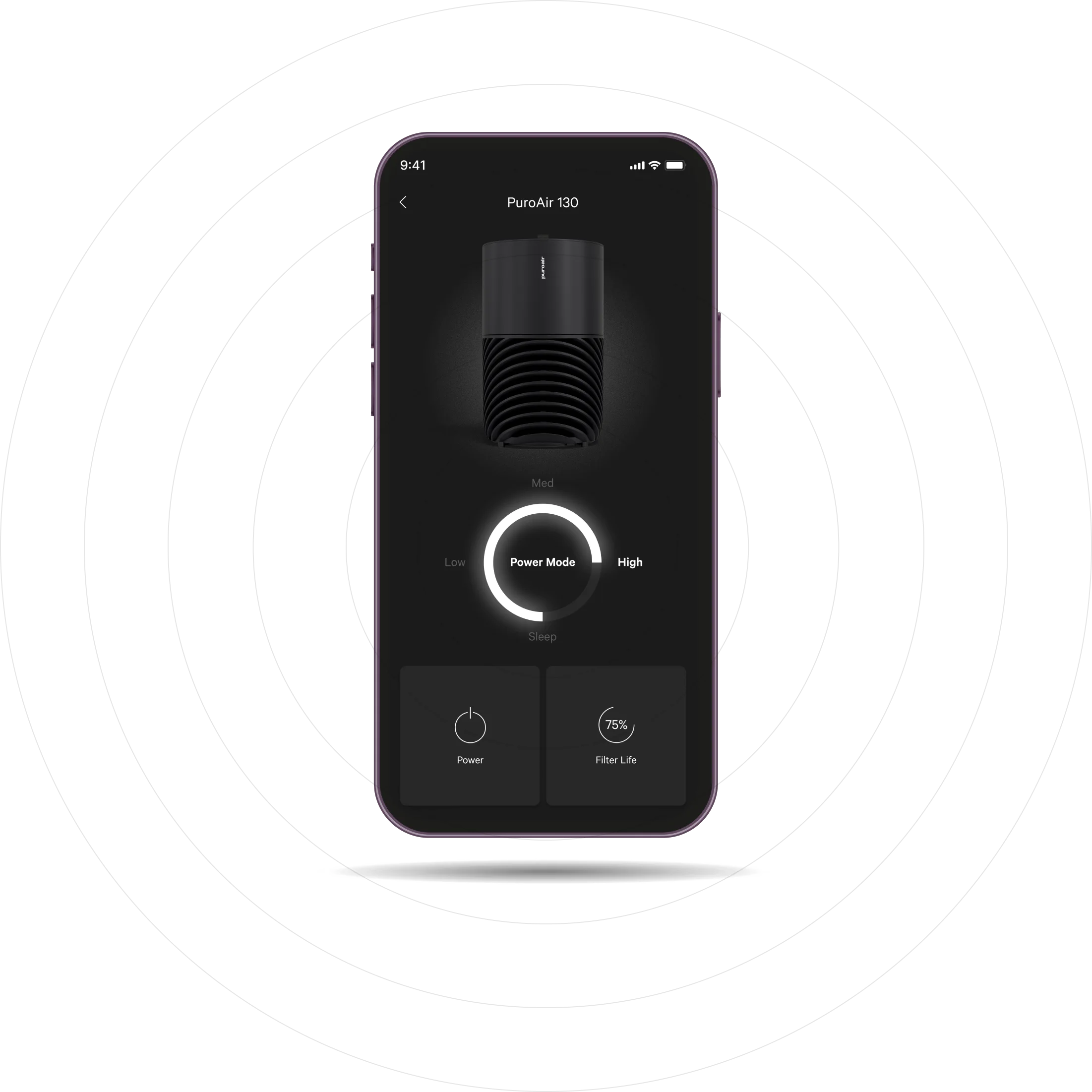
HOW TO SETUP THE PUROAIR MOBILE APP
1
To download the app, scan the QR code or search “puroair” in the Apple or Google Play App store.
2
Open the app and login or sign up for an account. Please note: You must create an account to use third-party services and products. These will not work with a guest account.
3
Connect your PuroAir air purifier to Wi-Fi. Press and hold the Wi-Fi button on your device for 10-15 seconds until it begins to flash. This enables the Bluetooth pairing mode.
4
Next, ensure that both Bluetooth and Location Services are turned on. Open the app and select the air purifier to begin pairing.
5
Connect your PuroAir air purifier to Wi-Fi. Press and hold the Wi-Fi button on your device for 10-15 seconds until it begins to flash. This enables the Bluetooth pairing mode.
App Setup
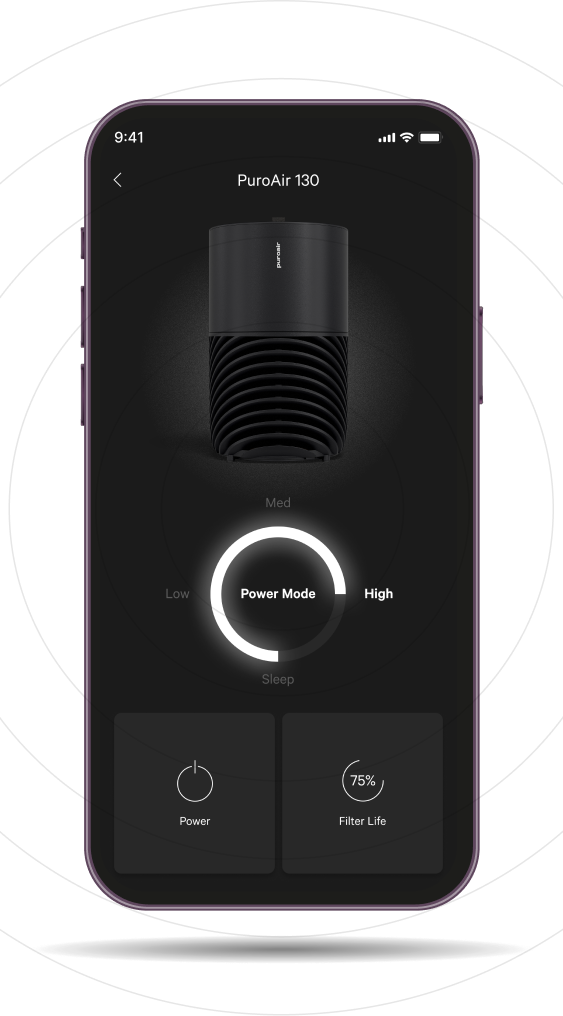
HOW TO SETUP THE PUROAIR MOBILE APP



Purifier Not Connecting
Air Purifier Is Not Connecting To The App
1. Check the Wi-Fi Connection
Ensure the Wi-Fi is enabled: Verify that the Wi-Fi on both the device and smartphone or tablet is turned on.
Check Network Status: Ensure that the Wi-Fi network is functioning properly and that other devices can connect to it.
Signal Strength: Ensure that the device is within range of the Wi-Fi router and that there are no physical obstructions or interference from other devices.
2. Check the Wi-Fi Connection
App Version: Ensure that the app is up to date. Visit the Apple App or Google Play Store to check for updates. Device Compatibility: Confirm that your smartphone or tablet is compatible with both the app and Wi-Fi air purifier.
3. Restart Devices
Restart the Wi-Fi-enabled 130i air purifier: Power off the device, wait a few seconds, and then turn the power back on.
Restart the router: Reboot the Wi-Fi router to reset the connection.
Restart the mobile device: Restart your mobile phone or tablet.
4. Check Wi-Fi Settings
Network Selection: Ensure that the 130i device is connected to the correct Wi-Fi network.
Wi-Fi Password: Double check that the right Wi-Fi password is entered in both the app and the smart phone or tablet.
5. App Permissions
Location Services: Ensure that the Location Services are enabled on your mobile device, as the app may require this to find the smart air purifier.
Permissions: Make sure the app has the necessary permissions to access Wi-Fi location, and other relevant features.
6. Check Wi-Fi Settings
Forget Network: On your mobile device, forget the Wi-Fi network and reconnect to it.
Reset Network Settings: If the issue persists, you may need to reset the network settings on your smartphone or tablet. Be aware that this will remove all saved Wi-Fi networks.
7. Reinstall The App
Uninstall and Reinstall: Uninstall the app from your mobile device and then reinstall it. This can resolve any software glitches.
8. Check Wi-Fi Settings
Reset to Default: If all else fails, perform a factory reset of the air purifier. To perform a factory reset, press and hold the Wi-Fi button for 10 seconds. Note that this will erase all Wi-Fi settings and return the device to its original state.
9. Check for Interference
Avoid Congested Channels: Ensure that the Wi-Fi network is not a congested channel, which can cause connectivity problems.
Minimize Interference: Move the air purifier away from potential sources of interference, such as microwaves and other wireless devices.
10. Contact Support
PuroAir’s Commitment to Support: If the problem persists, contact us at appsupport@getpuroair.com or call (866) 552-9322 for further assistance. Additional troubleshooting steps and air purifier updates may be provided.

Purifier is Offline
PUROAIR PURIFIER IS OFFLINE
1. Check the Power Supply
Power Connection: Ensure the air purifier is properly plugged in and receiving power.
Check that the power outlet is functioning properly.Power Button: Verify that the air purifier is turned on.
2. Verify the Wi-Fi Connection
Wi-Fi Status: Confirm that the Wi-Fi router is connected and broadcasting a signal. Check if other devices are connected.
Signal Strength: Ensure the purifier is within range of the router. If the signal is weak, try moving the unit closer to the router.
Network Congestion: If multiple devices are connected to the same network, try disconnecting a few to see if that resolves the issue.
3. Restart Air Purifier
Restart the Wi-Fi Air Purifier: Power off the device, wait a few seconds, and then turn the power back on.
Restart the Router: Reboot the Wi-Fi router to refresh the connection.
Restart the Connected Devices: Restart all the other devices connected to the Wi-Fi network to ensure they aren’t causing interference.
4. Check the Wi-Fi Network Settings
Network Name (SSID): Ensure the device is connected to the correct Wi-Fi network, especially if there are multiple networks available.
Password: Verify that the correct Wi-Fi password is entered. If the password has changed, you’ll need to update it on the purifier.
5. Inspect Router Settings
SSID Visibility: Ensure the Wi-Fi network’s SSID is not hidden. If it is, you may need to manually enter the SSID in the air purifier’s settings.
MAC Address Filtering: Check if MAC address filtering is enabled on the router. If so, make sure the air purifier’s MAC address is added to the allowed list.
DHCP: Ensure the DHCP is enabled on the router to automatically assign the IP addresses to connected devices.
6. Update Firmware/Software
Device Firmware: Check if there are any firmware updates available for the purifier. Update if necessary.
Router Firmware: Ensure the router’s firmware is up to date.
App Updates: Since the air purifier is controlled via the app, ensure the app is updated to the latest version.
7. Check for Interference
Physical Obstructions: Move the air purifier to reduce any potential physical obstructions between it and the router (e.g., walls, metal objects).
Wireless Interference: Minimize interference from other wireless devices such as microwaves, cordless phones, or baby monitors.
8. Reset Network Settings
Forget and Reconnect: On the air purifier app, forget the Wi-Fi network and then reconnect to it. This may resolve connection issues.
Reset Network Settings: In the app, reset the network settings to clear any old or corrupt settings and then reconnect to the Wi-Fi.
9. Factory Reset the Air Purifier
Restore the Factory Settings: If the device remains offline, perform a factory reset to restore it to its original settings. To perform a factory reset, press and hold the Wi-Fi button for 10 seconds. This should only be done as a last resort, as it will erase all current settings and data.
10. Check Internet Connection
ISP Status: Verify that your internet service provider (ISP) is not experiencing any outages. If there’s a known issue, wait until the service is restored. In the meantime, use the button controls on the air purifier to manage the settings.
11. Factory Reset the Air Purifier
Tech Support: If none of the above steps work, contact PuroAir’s technical support team at appsupport@getpuroair.com or call (866) 555-9322 for further assistance. We may provide additional steps or updates for your air purifier.

App FAQs


